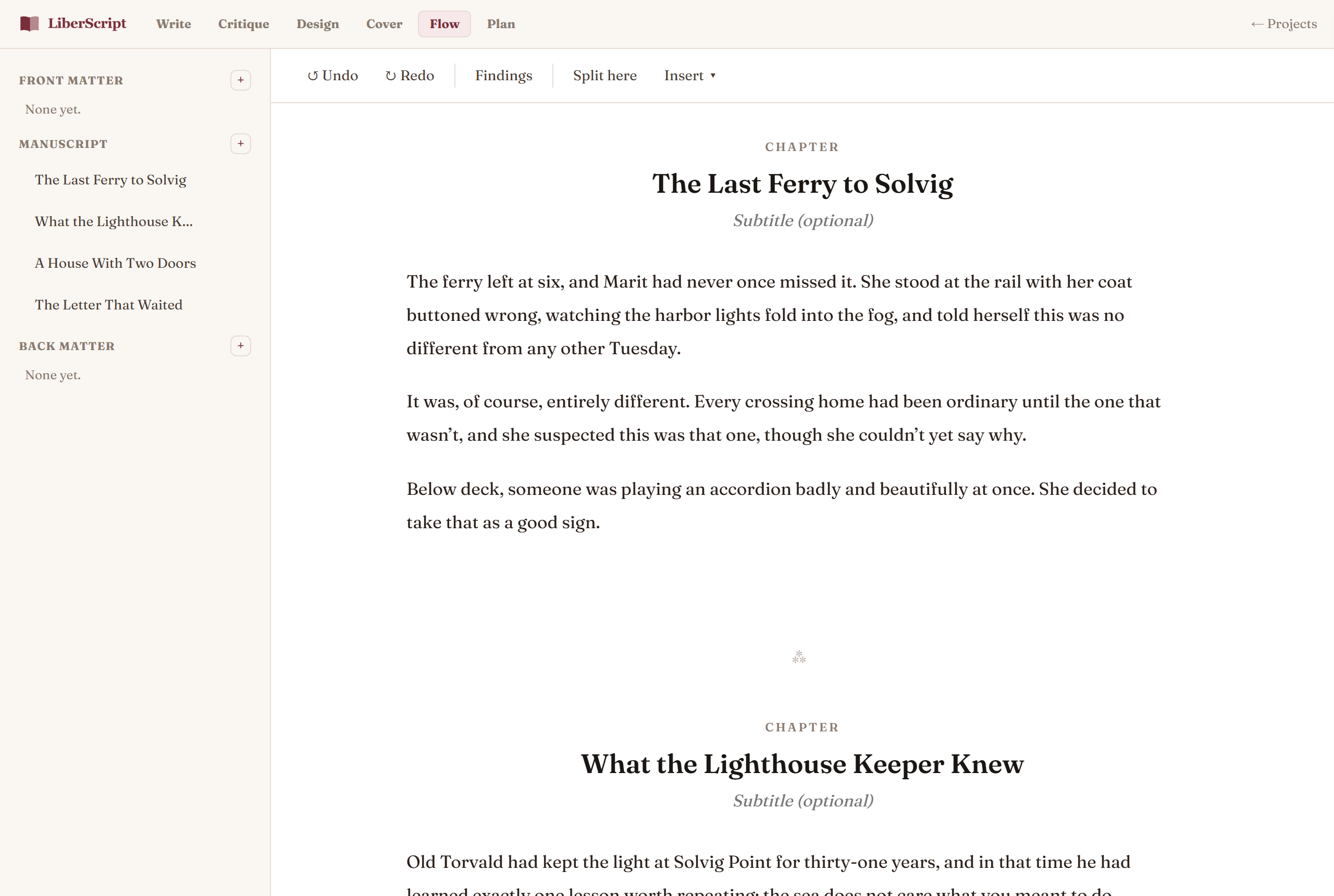
Write mode is built around one section at a time. Flow mode is the opposite: your entire manuscript (every chapter, prologue, part, and section) laid out as one continuous, scrollable page, styled to read like a real book rather than a stack of editing forms (a proper chapter opener with its title centered under a small kicker, a de-boxed title page, a "⁂" divider between sections instead of a raw line). Switch to it from the "Flow" tab at any time; nothing about your content changes, it's simply a different way of looking at and editing the same book.
When Flow mode is the better fit
- ✓Starting a brand-new manuscript. Choose "Start writing in Flow" right from a new book's welcome screen and skip Write mode entirely if you'd rather draft in one continuous page from the very first word.
- ✓Copying in an existing manuscript. Paste a large chunk of writing straight in, pasting more than a few hundred characters at once brings up a one-click suggestion for how to split it into proper sections, which you can adjust or dismiss.
- ✓Writing in long, uninterrupted sessions. No clicking between chapters breaks your flow, literally.
- ✓Getting a feel for pacing. Scrolling through the whole book at once, in something that already looks like a finished page, shows you how chapters actually sit next to each other.
The sidebar
The left sidebar lists every section in reading order, grouped into Front Matter, Manuscript, and Back Matter: click any entry to jump straight to it in the scrolling document. It updates live as you split sections, retitle chapters, or reorder your book.
Adding any section, right from the sidebar
Click the "+" next to Front Matter, Manuscript, or Back Matter to add any section your book needs (Epigraph, Dedication, Prologue, another Chapter, Appendix, and every other kind) without ever leaving Flow mode. Missing your book's epigraph, or realized partway through drafting that you want a foreword? Add it on the spot, exactly where it belongs.
Quick formatting: one dropdown for the whole selection
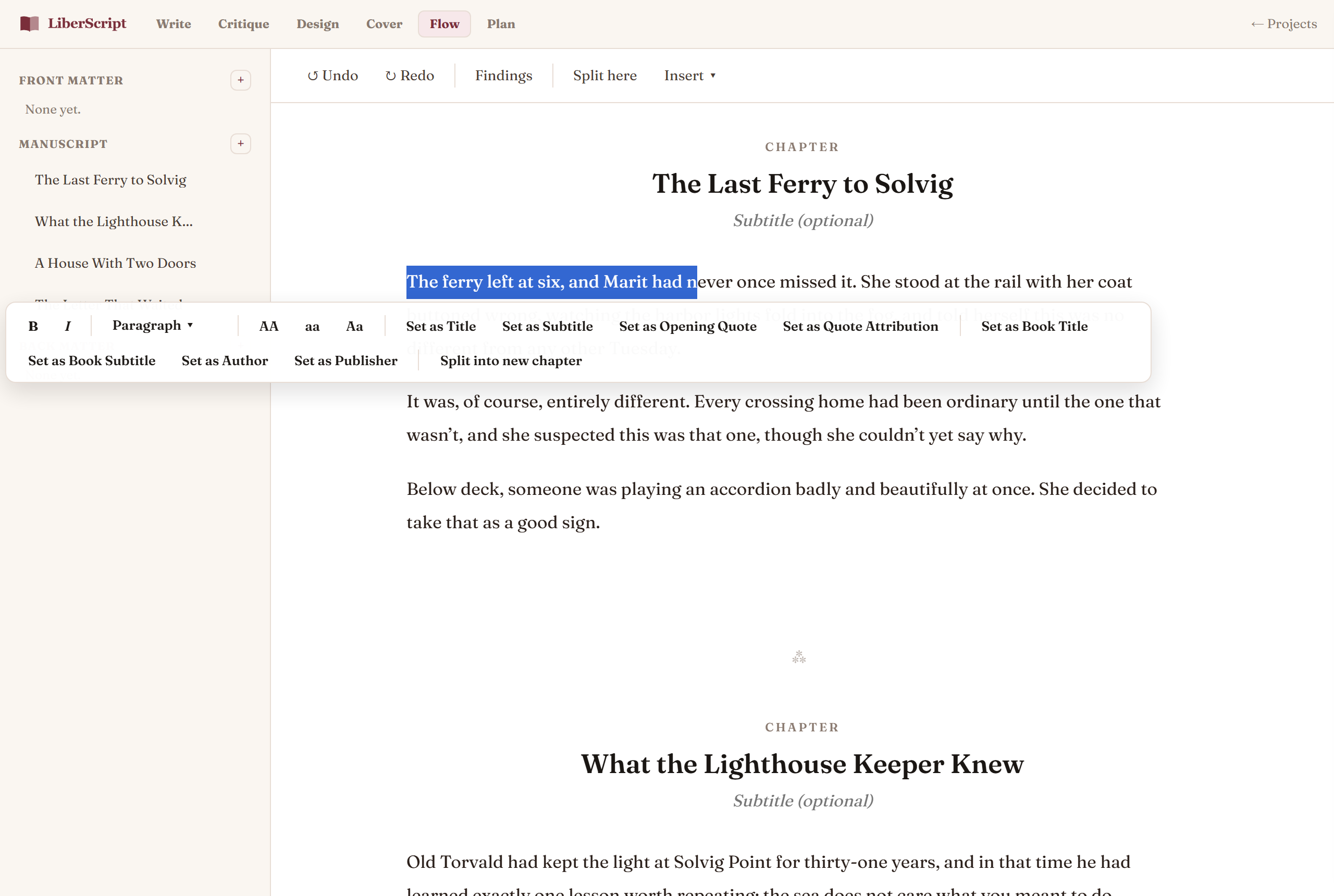
Select any line, sentence, or paragraph and a floating toolbar appears right above it. A single "Format" control shows the current selection's type at a glance (Paragraph, Heading 1 through 3, Quote, Bulleted List, or Numbered List) and switching between any of them is one click, instead of toggling one off before turning another on. The rest of the toolbar carries bold, italic, case conversion, and Assign actions (Set as Title, Set as Subtitle, Set as Opening Quote, Set as Quote Attribution, Set as Attribution): whichever ones make sense for the kind of section your cursor is currently in. A chapter offers different options than a book epigraph, for example, and the toolbar adjusts automatically as you move between them.
Splitting a section into a new chapter
Place your cursor where a new chapter should begin and either use "Split Into New Chapter" in the floating toolbar, or the "Split Here" button in the toolbar above: the content after your cursor becomes its own chapter immediately, without leaving Flow mode. Need a specific kind instead of a plain chapter (a Part break, an Appendix)? Use "Insert ▾" in the top toolbar and pick it directly.
Merging a section back into the one before it
If a paste or an import split your content into more sections than you actually wanted, hover a section in the sidebar (any but the first in its group) and click the "⇧" that appears: its content is appended to the previous section and it's removed, with nothing lost. Handy for undoing an over-eager split without retyping anything.
Your title page and copyright, right in the flow
Your book's Title Page and Copyright page appear at the very top of the document as plain, editable front matter: click directly into the title, subtitle, author, publisher, or copyright text to edit them in place, the same as any other field in Flow. They're deliberately spare (no boxes or panels) since real book front matter is sparse too.
How to use it, step by step
Related
The chapter-by-chapter view, formatting toolbar, and footnotes.
Read more →How chapter detection works when you import a manuscript.
Read more →