Your dashboard is the home base for every book on your account: start a new one, pick up where you left off, or manage exports without opening the editor at all.
Starting a new book
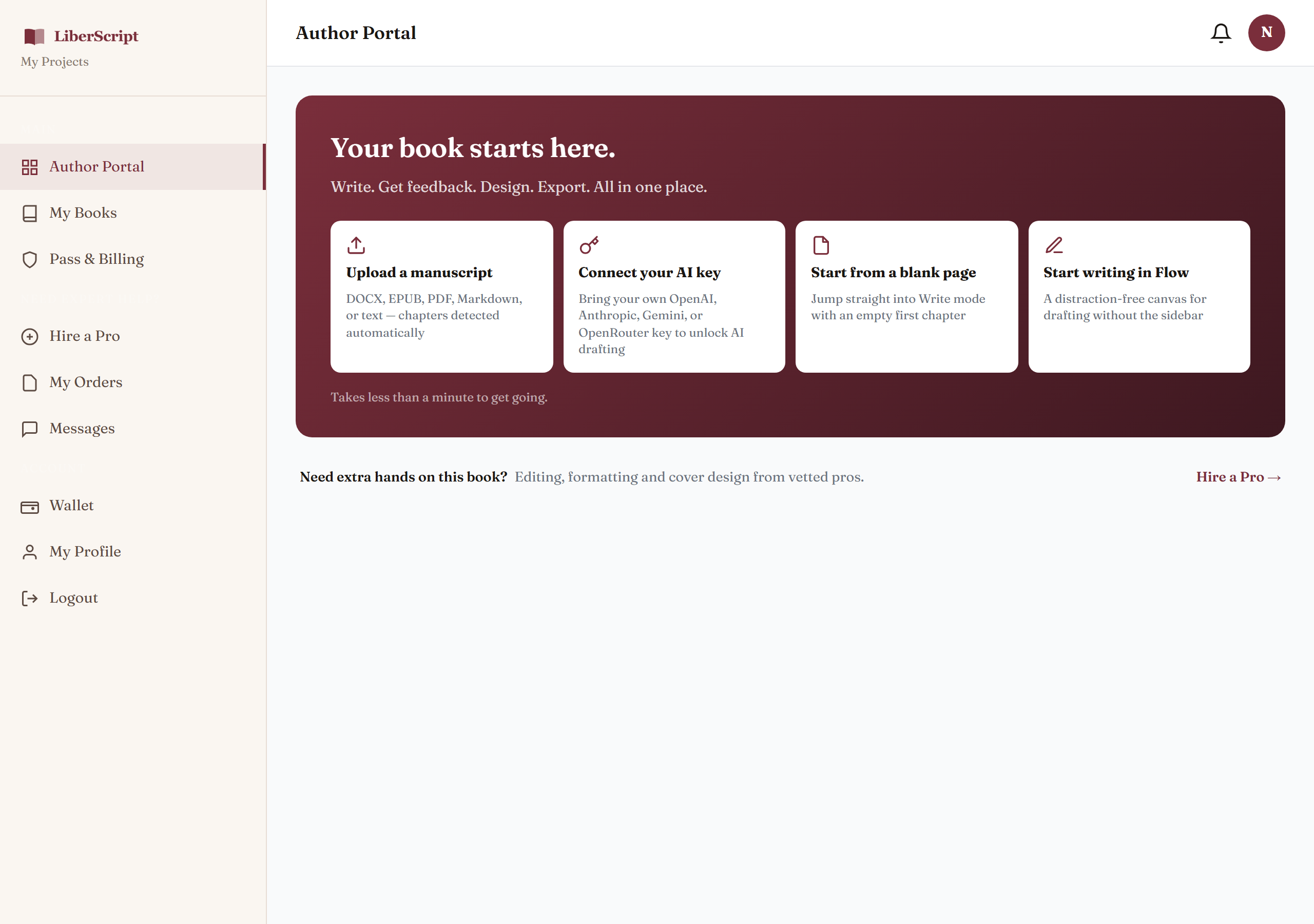
Your dashboard opens with four ways to begin, and picking one does exactly that thing right away — no detour through a separate screen first: upload a manuscript, generate an outline with AI (once you've connected your own API key), start from a blank page, or jump straight into Flow. Every book starts as "Untitled Book," renamable any time from its row in your list.
Importing an existing manuscript
Already have a draft? Upload it as DOCX, EPUB, PDF, Markdown, or plain text, and LiberScript detects your chapters automatically: bold, italic, and other formatting from the original file carries over instead of being flattened to plain text, including formatting inside a heading itself.
How chapter detection works
Detection looks for real structure, not guesswork: a keyword your manuscript already uses ("Chapter 1," "Chapter One," "Part II," "Prologue," "Epilogue," and similar) or, in DOCX/EPUB/Markdown files, an actual Heading style applied to the line, even without one of those keywords (a chapter titled just "The Storm," styled as a real heading, is still recognized). A line that merely looks like a heading (short, capitalized, or bold) but isn't backed by either a keyword or real heading structure is left as ordinary body text on purpose, so an emphasis-bolded sentence or a short aside doesn't get mistaken for a chapter of its own.
A subtitle written on the same line after a colon ("Chapter 1: Brooklyn Born") or on the very next line is split into the chapter's title and subtitle fields automatically. Scene-break markers (***, * * *, ⁂) are preserved as a proper centered break instead of being absorbed as an empty paragraph. A dismissible summary of everything detected appears right after import completes, so a misdetection is obvious immediately rather than discovered later.
Fixing a wrong detection
Chapter detection is a best guess over messy source files, and it won't always land perfectly. Nothing from your original file is ever lost when it doesn't: every fix is a normal editing action: reassign a section's kind from the "Section type" selector at the top of the chapter if it landed as the wrong type, drag it into a different position if the order is off, or merge it into the section right above it (the "⇧" button next to any section in the sidebar, in either Write or Flow mode) if content that belonged together got split into two pieces.
Author & publisher, without retyping them
Once you've typed an author or publisher name on one book, it's offered as a suggestion on every other book's author/publisher field: genuinely useful once you're managing more than one title, or writing under a consistent pen name and imprint.
Downloading your exports
Every book in your list has a download icon with everything you've exported for it: EPUB, DOCX, print PDF, or an annotated critique copy. Open any of them again without regenerating, or clear out old exports you no longer need to keep your list tidy.
Archiving a book
Finished, on hold, or just want it out of your active list? Archive a book to tuck it out of the way without deleting anything, nothing about the manuscript itself changes.
How to use it, step by step
Related
Where every export actually gets generated.
Read more →When you'd rather have a professional handle a book for you.
Read more →