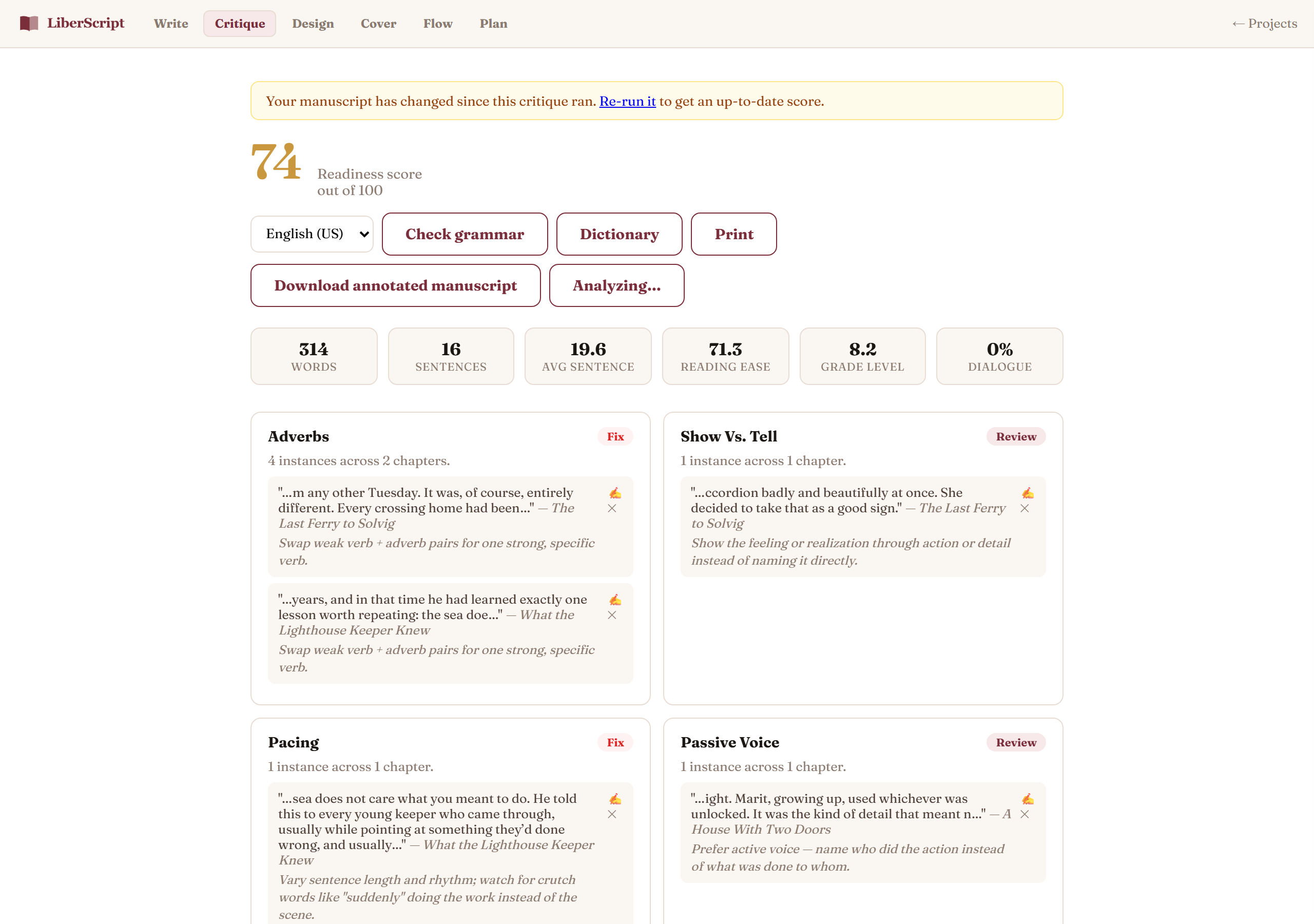
The Critique tab reads your whole manuscript and gives you two things: a structural analysis that flags common craft issues (the kind an editor would circle in the margin), and a full grammar and spelling check across every chapter. Both come back as a single, organized list you can work through, and both can be highlighted directly inside your manuscript so you never lose track of where an issue actually is.
What structural critique looks for
- Overused adverbs: the "-ly" words that often weaken a stronger verb nearby.
- Passive voice: sentences where the subject is acted upon rather than acting.
- Filler words: "just," "very," "really," and similar words that rarely earn their place.
- Show vs. tell: moments that state an emotion or fact rather than dramatizing it.
- Pacing: stretches of unusually short or unusually long sentences/paragraphs in a row.
- Clichés: well-worn phrases that could use a fresher alternative.
- Repetition: the same distinctive word or phrase reused too close together.
Each finding comes with a short explanation and, where useful, a suggestion, never an automatic rewrite. You stay in full control of your own words.
Grammar & spelling check
Click "Check Grammar" to run a full pass for spelling mistakes, grammar issues, and common style slips across your entire manuscript, in addition to the structural critique.
Adding words to your book's dictionary
Every book keeps its own dictionary: a list of words the spell checker will always treat as correct. It is where character names, place names, invented terms, brand names and technical vocabulary belong, so they stop being flagged on every run. The dictionary is per book, so one novel's invented vocabulary never leaks into another project.
There are two ways to add a word:
- From the Dictionary panel. Open the Critique tab and click Dictionary. Type a word and press Enter, and it is saved straight away. You can paste several at once, separated by spaces or commas, and each is added as its own entry. This is the way to add words before you run a check, which is useful right after an import when you already know your cast list.
- From a spelling result. After a check, each spelling finding has a + button. Clicking it adds that word to the dictionary and clears the finding in one step.
The Dictionary panel also shows everything currently in the list, with a × on each word to remove it, so a word added by mistake is easy to take back. New words apply the next time you run a check.
Choosing your language
If your book isn't in US English, set the correct language and dialect for your project (UK, Canadian, and Australian English, plus several other languages) from the Critique tab before running the check. This keeps spelling and grammar suggestions aligned with the conventions you're actually writing in, instead of flagging normal spellings as mistakes.
Highlighting findings in your manuscript
Turn on "Findings" from inside Write or Flow mode's toolbar and every finding lights up directly in your text, color-coded by type. Click a highlight to see the full explanation, and dismiss any finding you've reviewed and decided not to act on: dismissed findings won't reappear until you run a fresh check.
Printing your critique
Prefer to work through edits on paper? "Print" on the Critique tab lays out every open finding, chapter by chapter in book order, each with the passage it points to, what was found, and a suggestion, plus a small box to tick off as you go. Your print dialog opens on its own, and you can save it as a PDF from there instead.
Downloading an annotated copy
Export a version of your manuscript with every finding preserved as a real comment in the file: useful for reviewing offline, sharing with a beta reader, or working through issues away from the editor.
How to use it, step by step
Related
Where you'll actually revise based on what Critique finds.
Read more →See your whole manuscript as one continuous document.
Read more →