The Design tab is where your manuscript turns into the interior of an actual book: trim size, margins, typography, chapter openers, page numbers, and more. Every change previews instantly on the right, and every change saves automatically, exactly like your writing does.
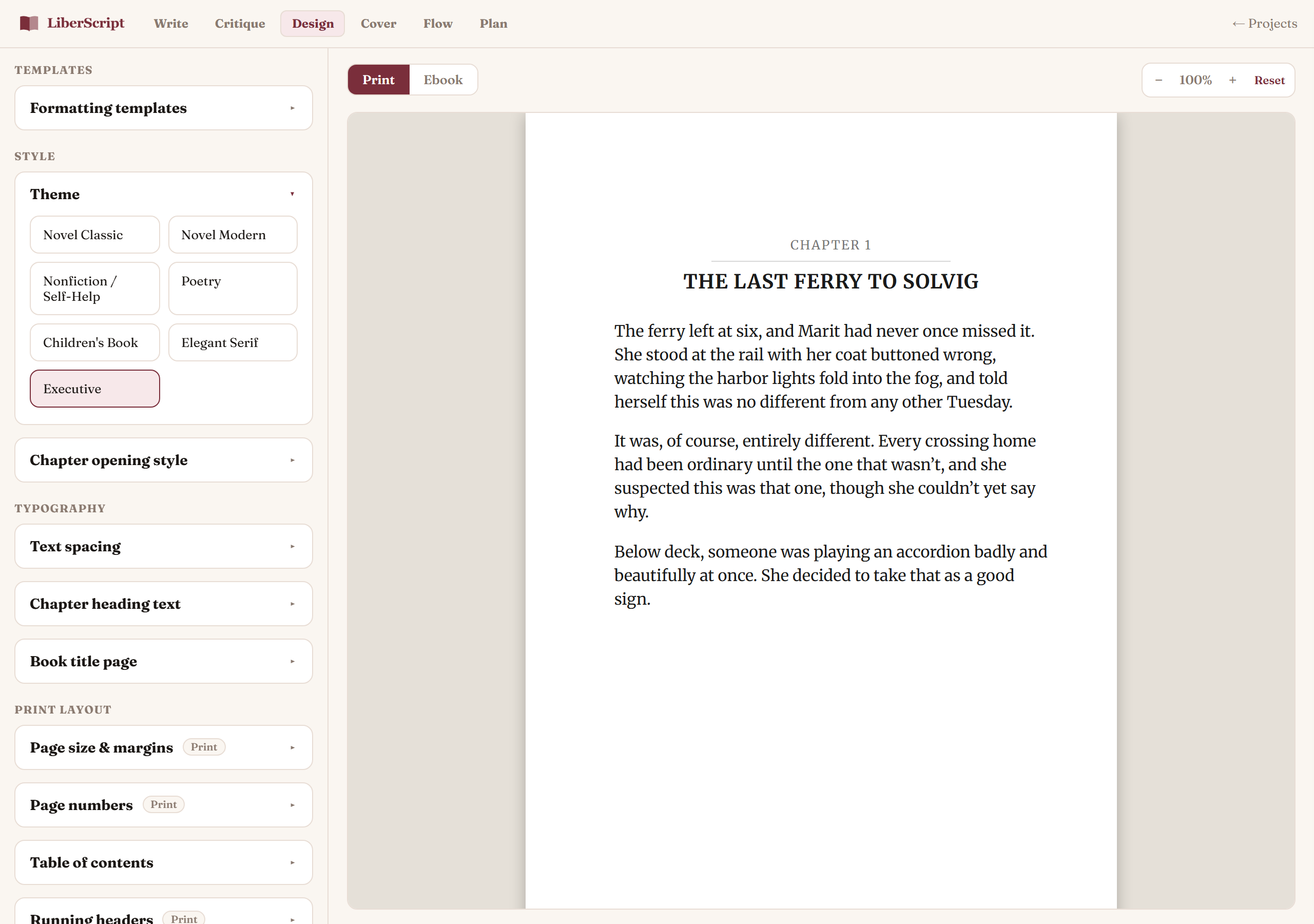
Themes
Start from a professionally designed theme and adjust from there, rather than building a look from scratch. Switching themes updates your whole book's typography and chapter-opener style in one click, nothing you've written changes, only how it's presented.
Chapter openers & numbering
Choose how each chapter begins (a chapter-style opener design), how chapters are numbered (e.g. "Chapter One" vs. "1" vs. "Chapter I"), and whether a chapter always starts on a fresh page, a new right-hand page, or continues naturally from the previous one.
Every opener style can also be fine-tuned on its own: turn its drop cap on or off, add or remove a divider (including which ornament it uses), and adjust the chapter number's size, fade, weight, and color independently of the title. So instead of hunting through a long list of near-identical presets for the one combination you want, you pick a style close to what you're after and adjust from there.
Typography
Fine-tune font size, line height, and paragraph spacing across the whole book, plus the spacing around opening quotes specifically. Chapter titles and subtitles have their own size, case (e.g. small caps or uppercase), color, and emphasis style. Set independently from your book's own title page, so styling one never accidentally changes the other.
Page numbers & running headers
Set where page numbers appear (top or bottom, left/center/right) and turn on running headers with separate content and alignment for left-hand and right-hand pages: a common touch in printed books that's easy to miss doing by hand.
Trim size & margins
Pick a standard print trim size (or set a custom one) and adjust your top, bottom, inner, and outer margins: inner margins can be set slightly wider to account for the binding, so text never crowds the spine.
Table of contents
Choose whether your auto-generated Table of Contents lists chapters by their title, their standard section label, or both.
Live preview
The preview pane on the right reflects every setting immediately, and can be viewed at different zoom levels and device sizes so you can check how a page actually looks before exporting.
Saving your settings as a template
Once a book's formatting looks right, save it as a named template from the Design tab. Applying that template to a different project instantly matches its formatting: ideal for a series, or simply for reusing a look you like across every book you write, without redoing every setting by hand each time.
How to use it, step by step
Related
Ghostwriting, editing, formatting, and cover design as done-for-you services.
Read more →